3. NTCP from your own structures#
In this tutorial you compute the risk of esophagitis with the Esophagitis (Huang) model, using the esophagus contours already in your data. No AI model is needed. The model also corrects the dose for the number of fractions, so you give each patient’s fractionation in a Plan info CSV.
You need:
A cohort folder with one subfolder per patient, each holding the CT, the dose and the structure set (DICOM RTSTRUCT, or NIfTI/NRRD masks) with the esophagus contoured.
A Plan info CSV with each patient’s fractionation, for example
plan_info_esophagitis.csv.A CSV of each patient’s concurrent chemotherapy, for example
clinical_predictors_esophagitis.csv.
Set up the analysis#
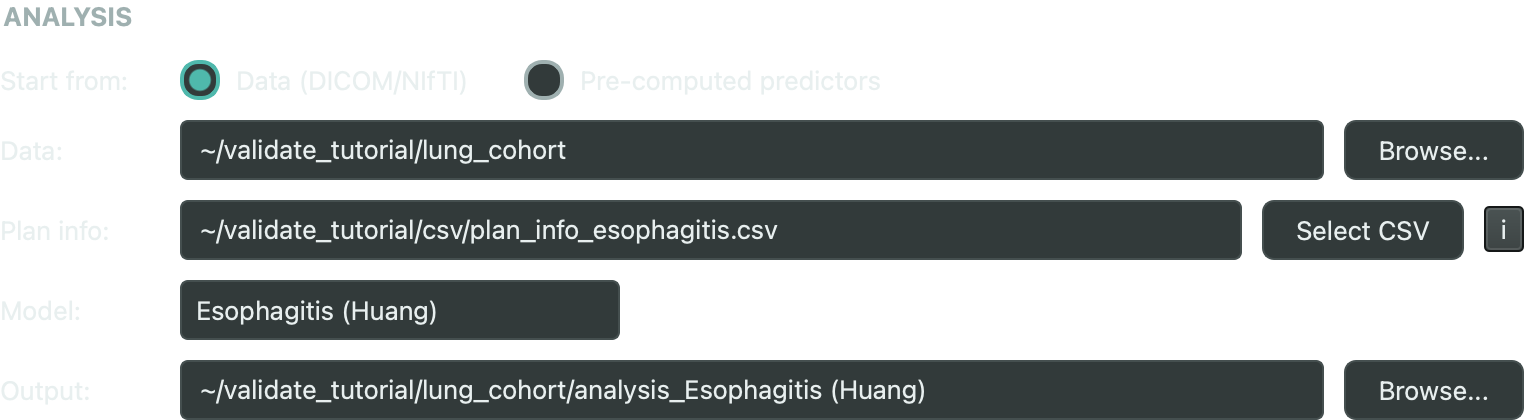
Open VALIDATE, and keep Data (DICOM/NIfTI) selected under Start from.
Next to Data, click Browse… and select your cohort folder.
Next to Plan info, click Select CSV and choose your plan info CSV.
In Model, select Esophagitis (Huang).
Check the Output folder.
The plan info CSV#
The model needs the fractionation to correct the dose. Give any two of Prescribed dose (Gy), Fraction size (Gy) and Fraction number:
ID,Prescribed dose (Gy),Fraction number
pt_001,60,30
pt_002,66,33
ID is the patient’s folder name. For the other columns this CSV can hold (plan names, NIfTI/NRRD file names, structure names), see Plan info CSV.
Skip the Segment tab#
The Segment tab says this model needs no AI models:
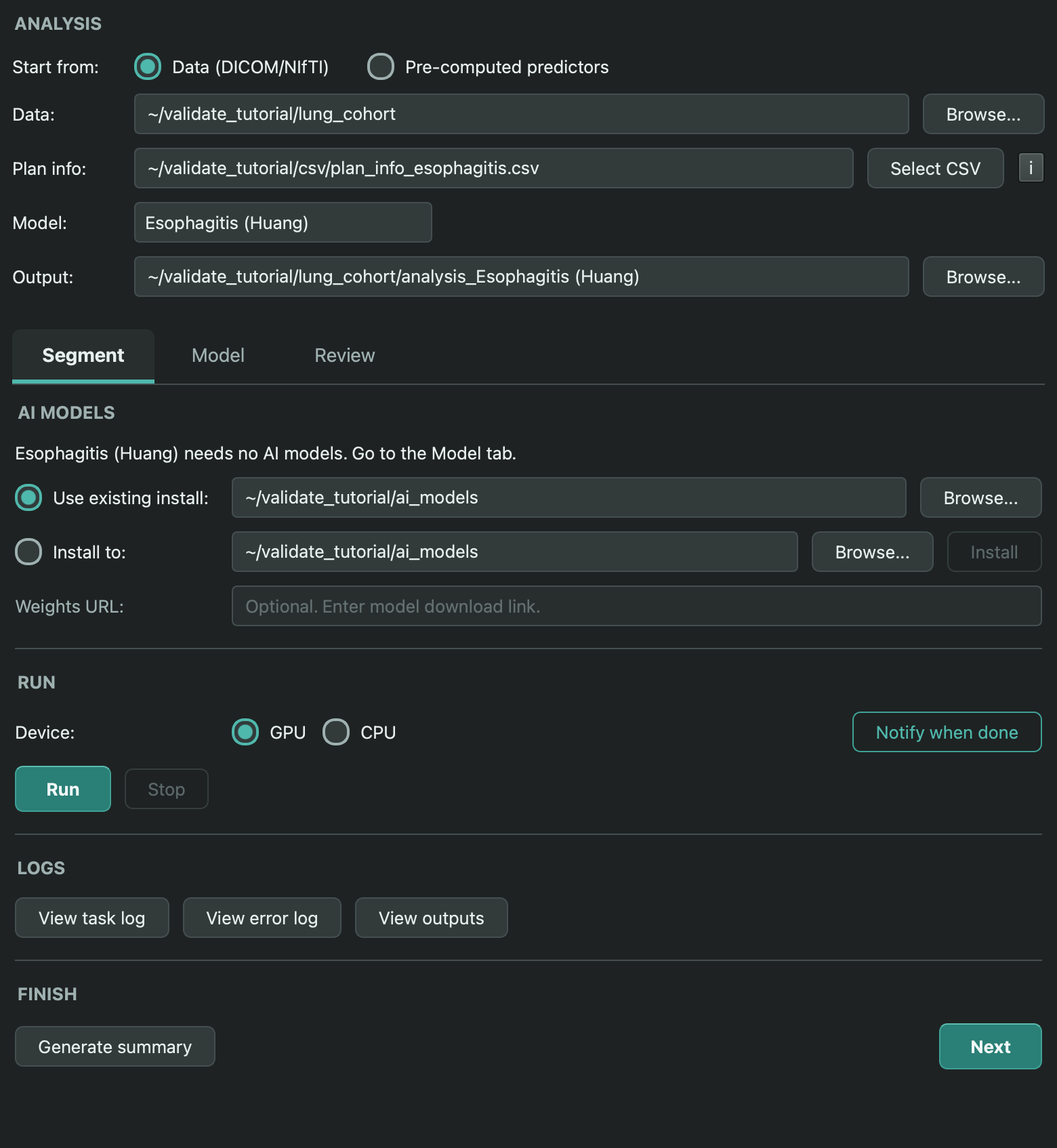
Click the Model tab. If VALIDATE asks to save the settings, click Save and continue.
Name your structure#
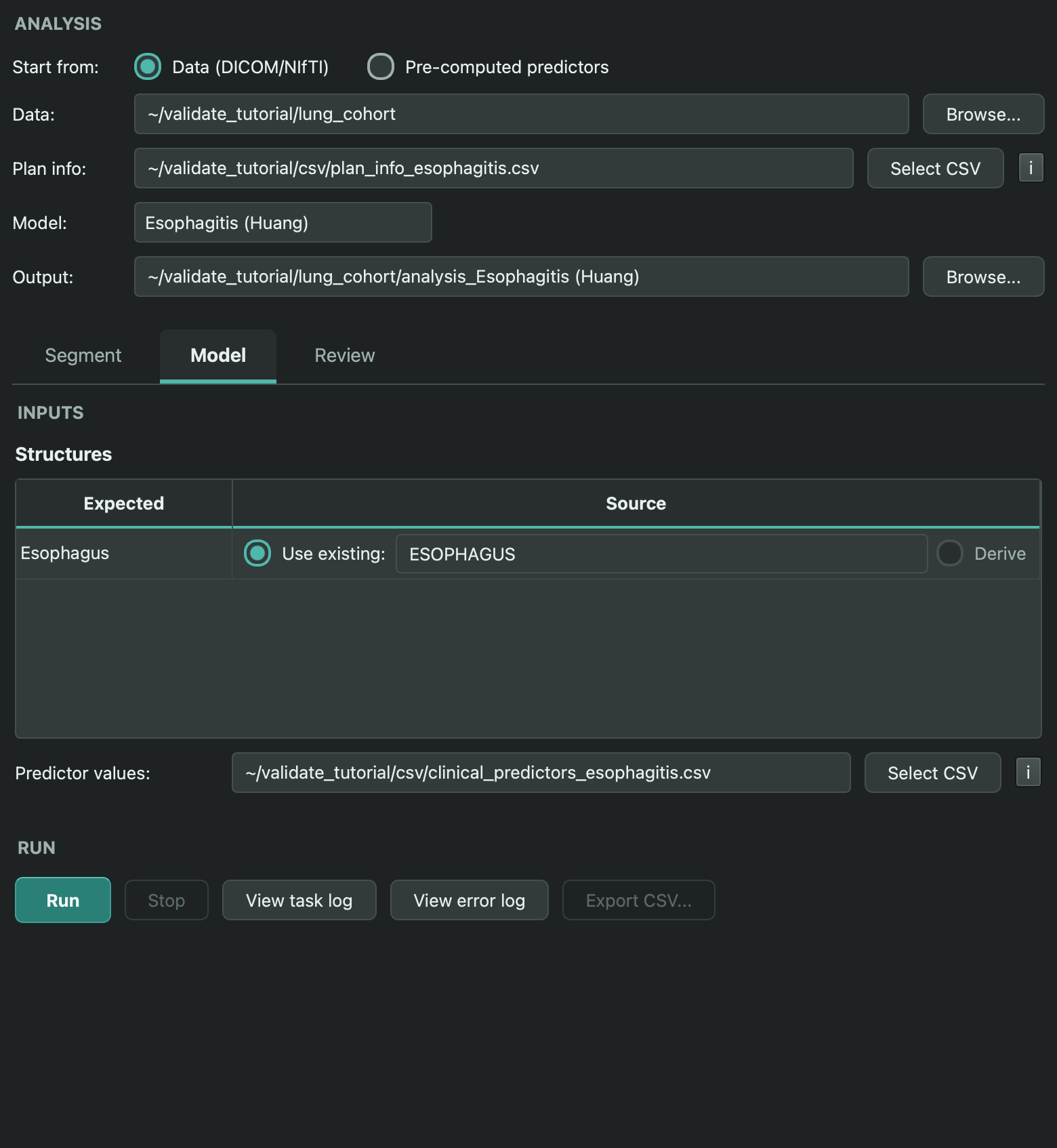
The Structures table lists Esophagus, with Use existing selected. Derive is grayed out, since VALIDATE has no recipe for this structure.
In the box next to Use existing, type the structure’s name in your data, as it appears in the RTSTRUCT, for example
ESOPHAGUS. The whole name must match, but upper and lower case don’t matter.Next to Predictor values, click Select CSV and choose the CSV with the concurrentChemo column (
0for No,1for Yes).
Tip
If the name differs between patients, add a column named after the model’s structure
(here Esophagus) to the plan info CSV, with each patient’s name for it. A name there
is used instead of the one in the table. For NIfTI/NRRD data, that column gives the mask
file instead, or file:label for a label map.
Compute the NTCP#
Click Run, then Save and continue.
When the progress bar says Done, click Export CSV… to save the results.
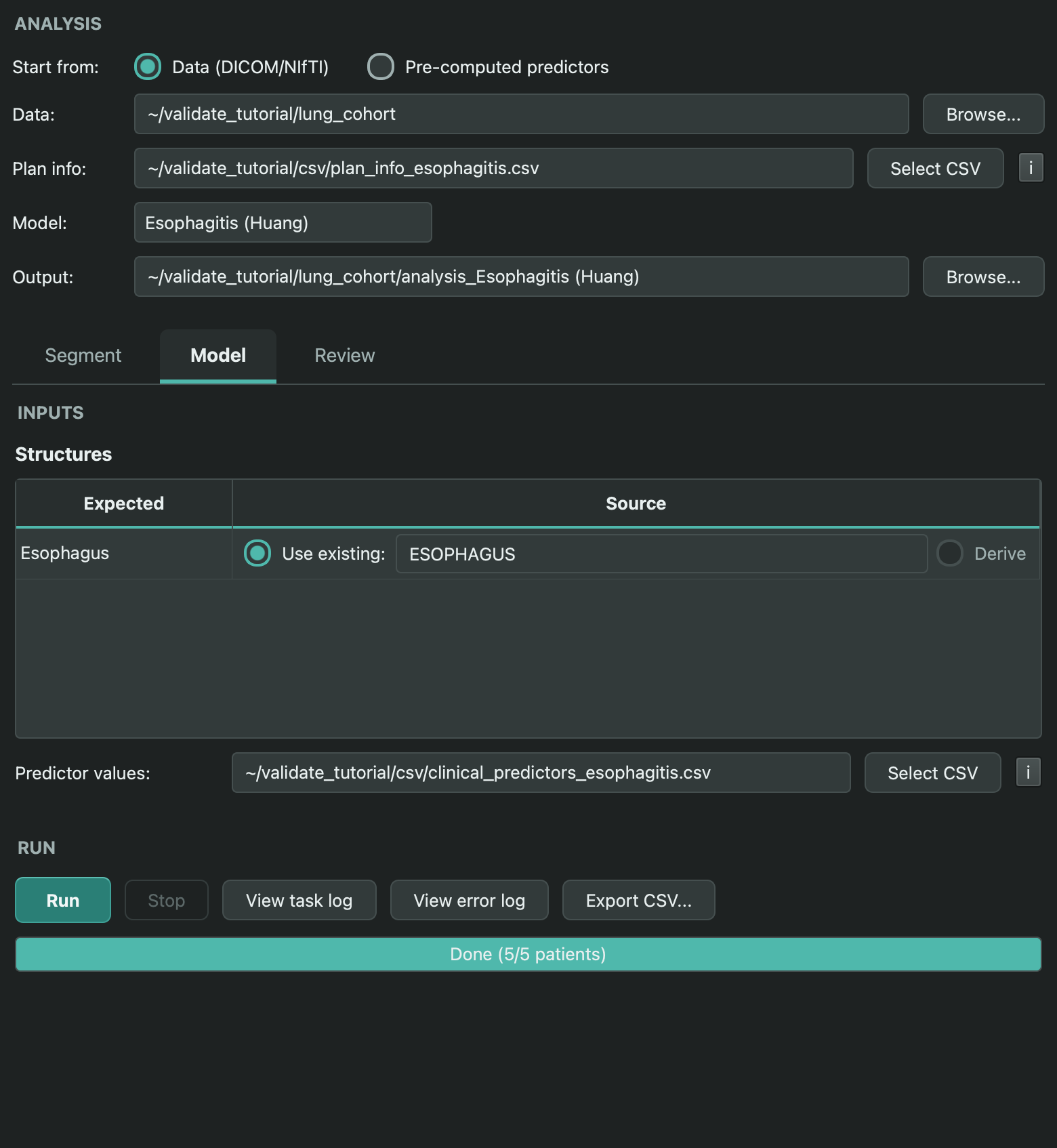
Click View error log to see why any patient failed. A common cause is a structure name that doesn’t match; see Troubleshooting.
Mixing derived and existing structures#
For a model with several structures, you can choose Derive for some and Use existing for others. Run Segment first if any are derived; see 2. From AI segmentation to NTCP.