Tour of the window#
The window has two parts: the Analysis settings at the top, which every tab uses, and three tabs below that you work through from left to right.
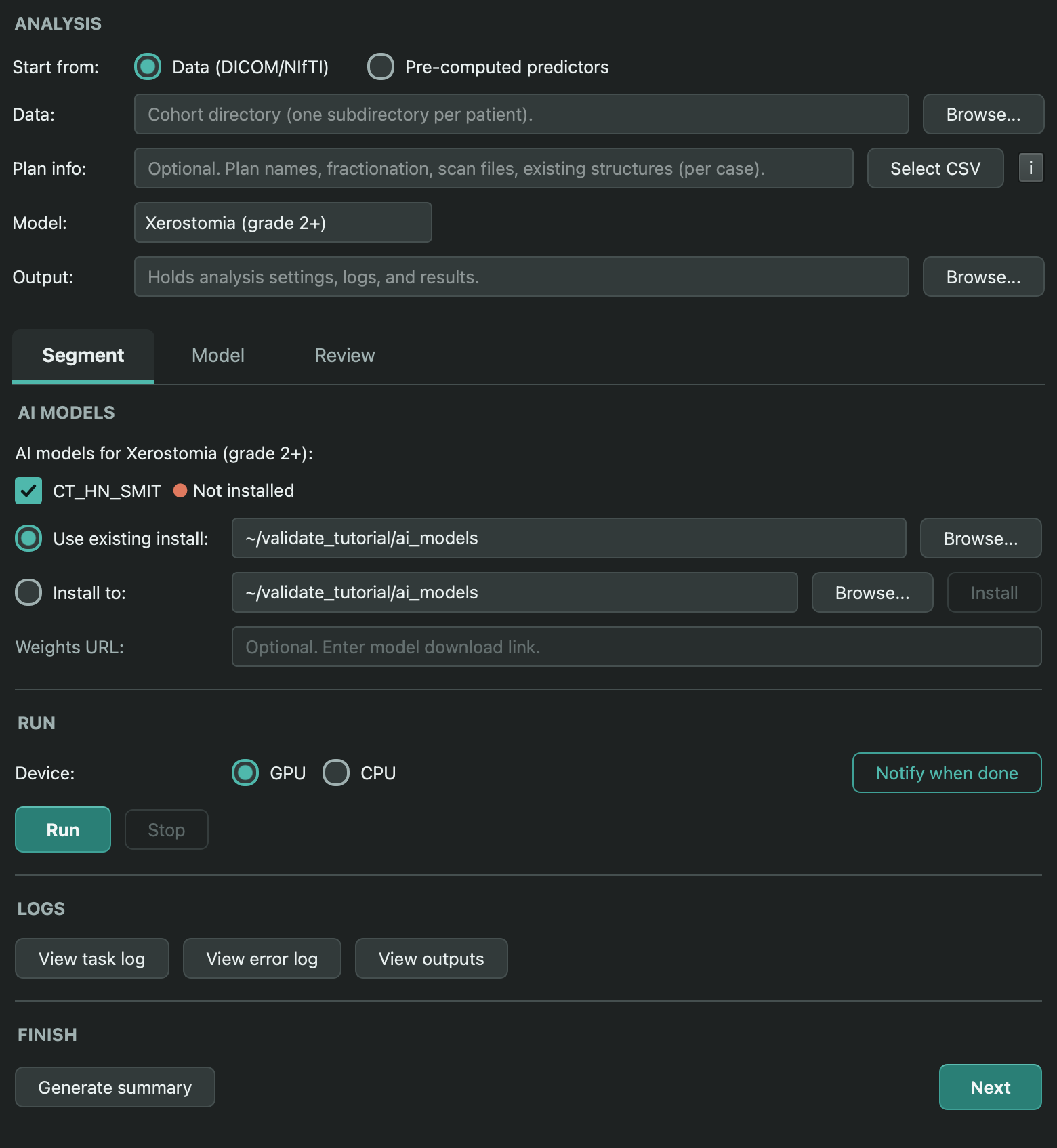
Analysis settings#
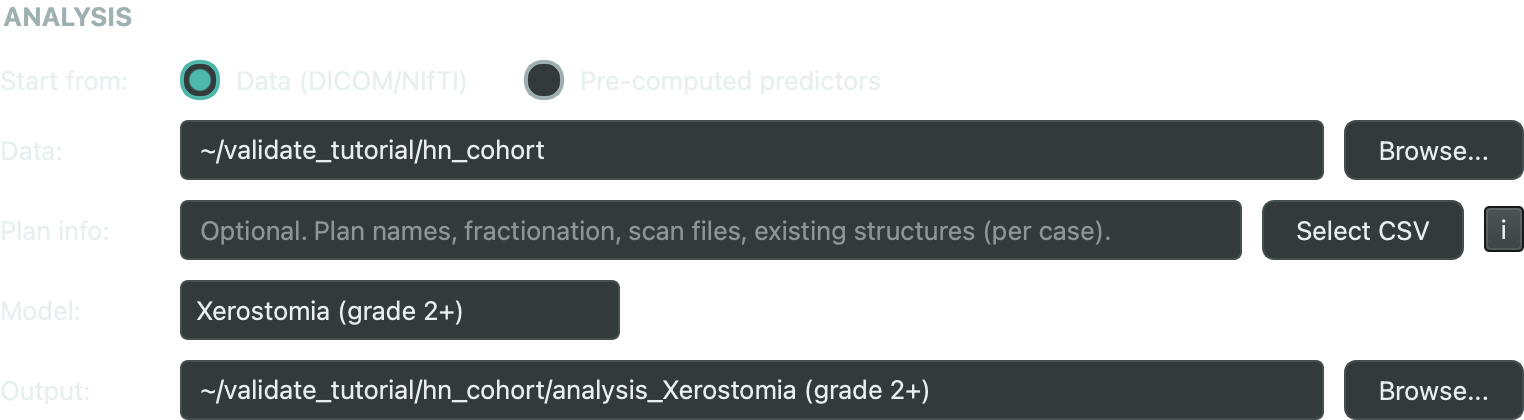
- Start from
Data (DICOM/NIfTI) to start from each patient’s scans (and dose). Pre-computed predictors to start from a table of dose metrics you already have; see 4. NTCP from pre-computed predictors.
- Data
The cohort folder, with one subfolder per patient. See Inputs.
- Plan info
Optional. A CSV with one row per patient, for plan names, fractionation, NIfTI/NRRD file names, and each patient’s names for the model’s structures. Hover over i for the columns, or see Plan info CSV.
- Model
The dosimetric model to apply. The tabs below update to show what this model needs.
- Output
The analysis folder, where VALIDATE saves the settings, logs and results. It defaults to
analysis_<model>inside the Data folder. Choosing a folder that already holds an analysis loads its settings.
Note
One analysis holds one model. Changing the Model of an analysis you’ve already saved starts a new analysis in another folder, after you confirm.
Saving settings#
VALIDATE asks before saving your settings to the analysis folder. This happens when you press Run, switch tabs, or close the window, if the settings changed:
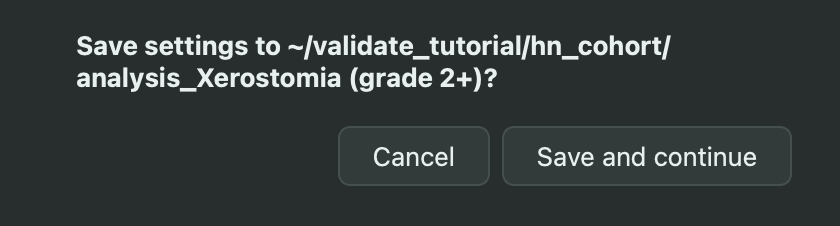
If a change affects results already computed, the pop-up warns that they will be cleared.
Segment tab#
Runs the AI models that the chosen model’s structures are made from. It lists those AI models, installs them if needed, and runs them on every patient. See 1. AI segmentation of a cohort.
Model tab#
Computes the NTCP for every patient. For each structure the model needs, you choose Derive (make it from the AI contours) or Use existing (take it from your data). You can also add a CSV of clinical predictor values. See 2. From AI segmentation to NTCP.
Review tab#
Will show how well the model performs on your cohort (discrimination and calibration). It’s still being developed.
Running#
Both the Segment and Model tabs have the same run controls:
Control |
What it does |
|---|---|
Run |
Saves the settings (asking first) and runs on every patient. |
Stop |
Stops after the patient being processed. Patients already done keep their results. |
View task log |
Opens |
View error log |
Opens the latest run’s list of errors, one line per patient. |
Only one run happens at a time. If you close the window during a run, VALIDATE offers to abort it; the patient being processed is then recorded as aborted.